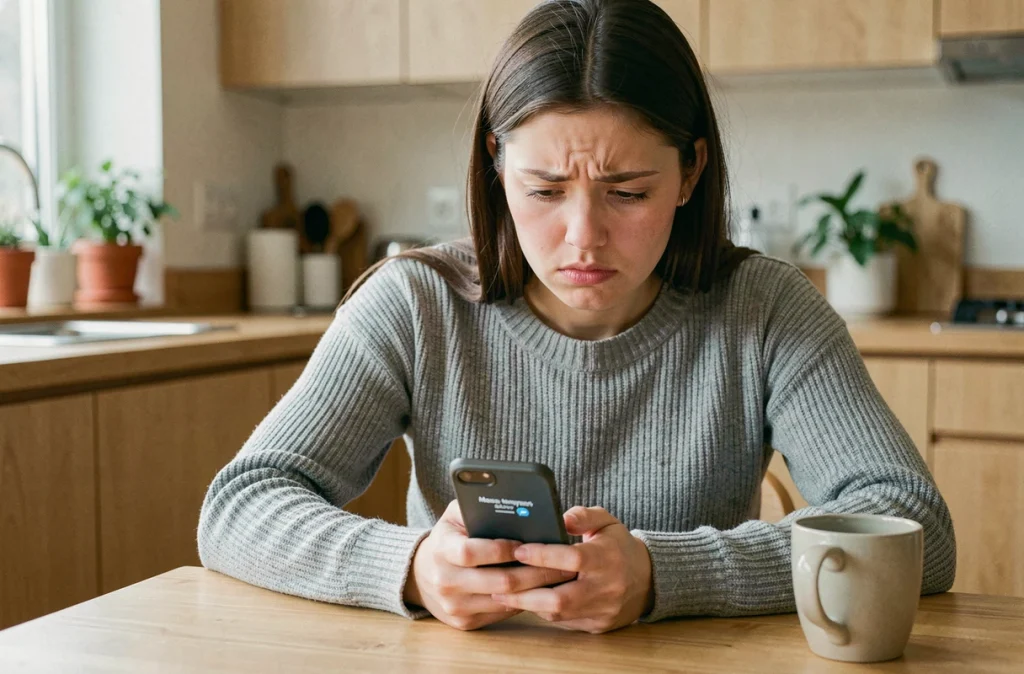
The message “waiting for network” on Messenger means that the app is unable to establish or maintain a connection with Meta’s servers. The text appears under a sent message, which remains stuck without ever being sent. The issue may stem from the phone, the local network, or, less commonly, an outage on Meta’s side.
Meta outage or local issue: the diagnosis that changes everything
The first thought when faced with this error is not to reset your phone. It’s to check if Messenger is working for everyone or just for you.
The official Meta dashboard (metastatus.com/messenger) displays the service status in real-time. Most of the time, the indication is “No known issues.” If that’s the case when the error appears, the problem is on your side, not the servers’.
In July 2026, a partial outage of Messenger affected users while Facebook remained accessible. This type of incident causes exactly the same “waiting for network” message, but no user-side action can resolve it: you must wait for Meta to restore the service. Knowing how to make this distinction saves time from clearing the cache or reinstalling the app for no reason.
To quickly diagnose the waiting for network issue on Messenger, test another messaging service (WhatsApp, Signal) and open any web page. If everything else works, the issue is related to Messenger or its configuration on your device.
Wi-Fi connection and mobile data: the most common network causes
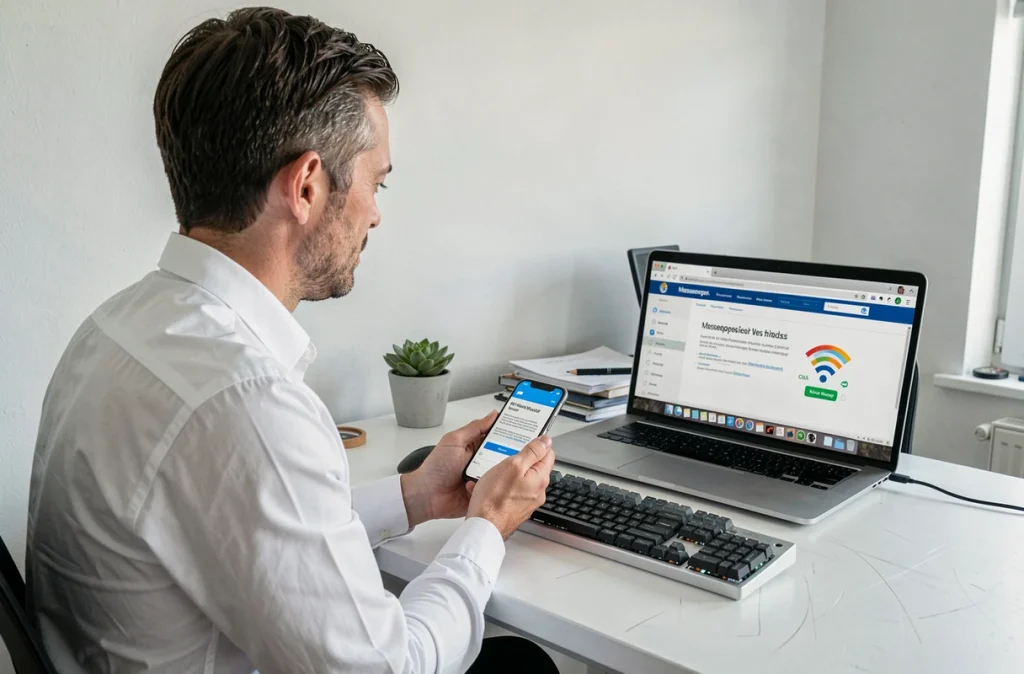
A Wi-Fi network that shows “connected” does not guarantee actual internet access. Captive portals (hotels, train stations, cafes) often block outgoing Messenger connections without cutting off regular web browsing. Temporarily switching to mobile data allows you to confirm or eliminate Wi-Fi as the cause.
Airplane mode remains an underestimated fix. Activating it for about ten seconds and then deactivating it forces the phone to reconnect to the cellular network from scratch. This action restores the connection in many cases related to unstable network issues.
VPN and firewall: invisible blocks
An active VPN can prevent Messenger from reaching Meta’s servers, especially if the chosen VPN server is located in a country where access to Facebook is restricted. Some corporate firewalls or parental controls also filter Messenger connections without visible warnings.
Temporarily disable any VPN or proxy to isolate this possibility. If Messenger works without the VPN, the problem is identified: you will need to configure an exception or change the VPN server.
Cache and data of Messenger: when the app blocks itself
Messenger stores temporary files (cache) locally that can become corrupted after an incomplete update or lack of storage space. This corruption causes connection errors even when the network is functioning perfectly.
Clearing the cache on Android
- Open Settings, then Apps, then Messenger
- Tap on Storage, then “Clear cache” (this action does not delete your conversations or photos)
- If the problem persists, tap on “Clear data” (you will need to log back into your Meta account)
Deleting and reinstalling on iOS
On iPhone, iOS does not allow clearing the cache of an app individually. The method is to completely delete the app and then reinstall it from the App Store. Conversations are saved on Meta’s servers and will reappear upon reconnecting.
Before reinstalling, ensure that you are using the latest version of Messenger. An outdated version may lose compatibility with Meta’s current network protocols, which generates the “waiting for network” error permanently.

Permissions and system settings often overlooked
Messenger requires explicit network permissions to function. Some operating system updates (both Android and iOS) reset these permissions or activate background restrictions that prevent the app from sending data.
- Check that Messenger has “Mobile data” and “Background data” permissions in your phone’s network settings
- On Android, disable the “Data saver” option which may block outgoing connections from certain apps
- On iOS, ensure that the “Cellular data” slider is enabled for Messenger in Settings, then Cellular
- Check that the date and time on the phone are set to automatic, as a time discrepancy prevents authentication with Meta’s servers
Closure of messenger.com: a false network issue
Meta announced the closure of the messenger.com site starting in April 2026. Users who accessed Messenger via this website may now encounter connection errors that resemble a network problem. The solution is to use the mobile app or the messaging interface integrated into facebook.com.
The reflex to clear the cache, reinstall, and restart covers most situations. For persistent cases, the diagnosis always involves methodical elimination: first check the status of Meta’s servers, then test another network, and then inspect the app’s permissions. The “waiting for network” message almost always disappears before the third step.