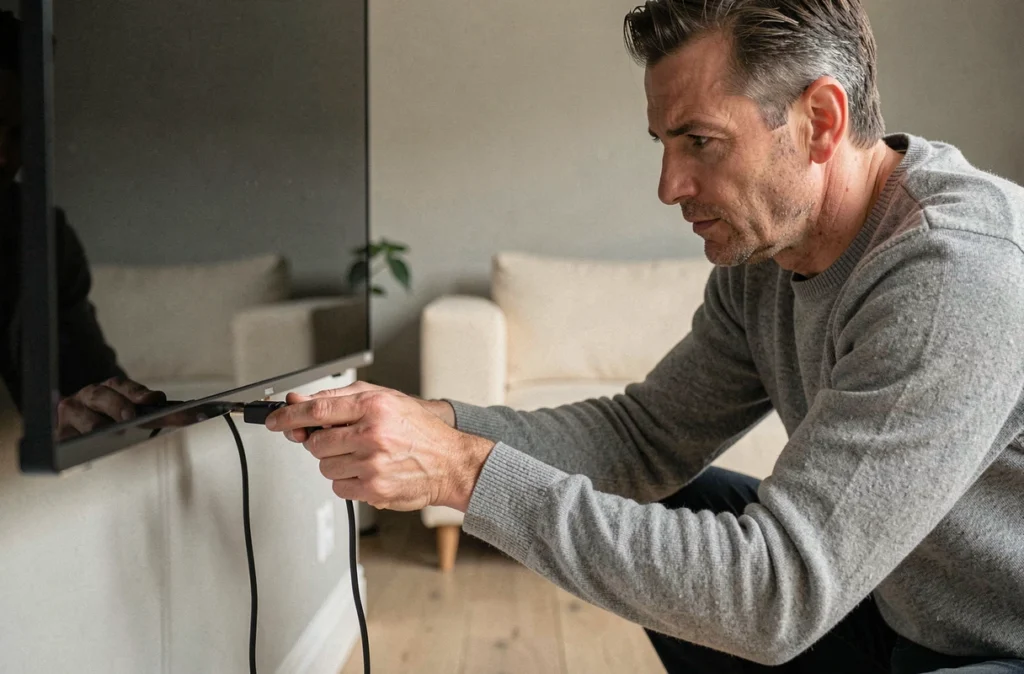
You have just received your IPTV subscription, you have the M3U link or Xtream Codes credentials in front of you, and nothing is going as planned. The application won’t install, the stream won’t load, or worse, your television is simply not compatible with the player recommended by the provider. The issue rarely comes from the subscription itself: it stems from the mismatch between your TV model and the chosen setup method.
IPTV Compatibility According to Your TV System
Not all televisions sold as “Smart TVs” handle IPTV in the same way. The embedded operating system dictates the available applications, accepted stream formats, and the stability of the player. Three main families coexist in the market: Tizen (Samsung), webOS (LG), and Android TV/Google TV.
On a recent Samsung TV running Tizen, the options are limited to a few applications like Smart IPTV or Set IPTV, which require a paid activation via a code displayed on the screen. Samsung models from before 2017 sometimes no longer support these applications, as the Tizen store has removed certain players from older versions of the system.
At LG, webOS offers SS IPTV for free download, but again, older versions of webOS pose compatibility issues. It is advisable to check the exact firmware version in the TV settings before looking for an application. A comprehensive guide for connecting and configuring IPTV on TV details these checks by brand.
Android TV and Google TV offer the greatest flexibility. The Play Store provides access to TiviMate, IPTV Smarters Pro, and OTT Navigator. These players accept both M3U lists and connections via Xtream Codes. Feedback varies depending on TV models (some brands modify Android TV with overlays that block sideloading), but overall, it is the most open ecosystem for IPTV.
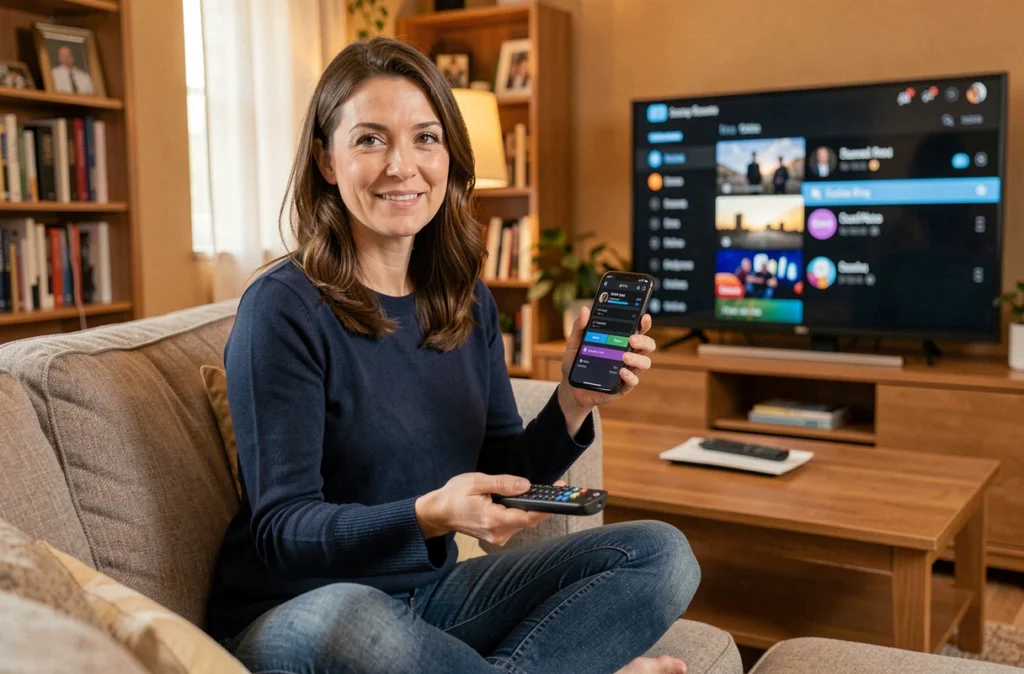
Step-by-Step IPTV Setup: M3U or Xtream Codes
Once the application is installed, the setup depends on the type of credentials provided by the provider. Two formats dominate.
Connection via M3U URL
The provider sends a URL (often long, starting with http://) that points to the channel list. In the IPTV application, look for the option “Add a playlist” or “Load M3U,” then paste the URL. The loading takes a few seconds to several minutes depending on the number of channels.
Also add the EPG guide URL if provided, in the dedicated field. Without EPG, you will have the channels but no TV program displayed, making navigation cumbersome.
Connection via Xtream Codes
This is the most common format today. The provider gives three elements: a server URL, a username, and a password. Applications like IPTV Smarters Pro or TiviMate offer a dedicated login screen for this format. Fill in the three fields, validate, and the categories (live channels, VOD, series) will appear automatically.
Points to check systematically after the first connection:
- Does the video stream start in less than a few seconds on the main channels, or does it remain stuck on a black screen (a sign of bandwidth issues or a saturated server)
- Does the program guide (EPG) display the correct times, or are they offset by several hours (check the time zone in the application settings)
- Do the VOD and series categories load their thumbnails, or do they remain empty (some servers disable VOD depending on the type of subscription purchased)
External Box or Native Application: Which Choice for Which TV
When the television does not support IPTV applications (old model, proprietary system without a store), an external box becomes the only reliable solution. The Amazon Fire TV Stick and Android TV boxes (Nvidia Shield, Xiaomi Mi Box) are the most commonly used.
The Fire TV Stick works well with TiviMate and IPTV Smarters Pro, but some applications must be installed via sideloading (through Downloader or an APK file), as they do not appear on the Amazon Appstore. The procedure requires enabling “unknown sources” in the box settings.
On an Android TV box, the Play Store simplifies everything. You install the player like any other application. The Nvidia Shield remains the reference in terms of power, but for standard IPTV use, a more affordable box does the job without issues.
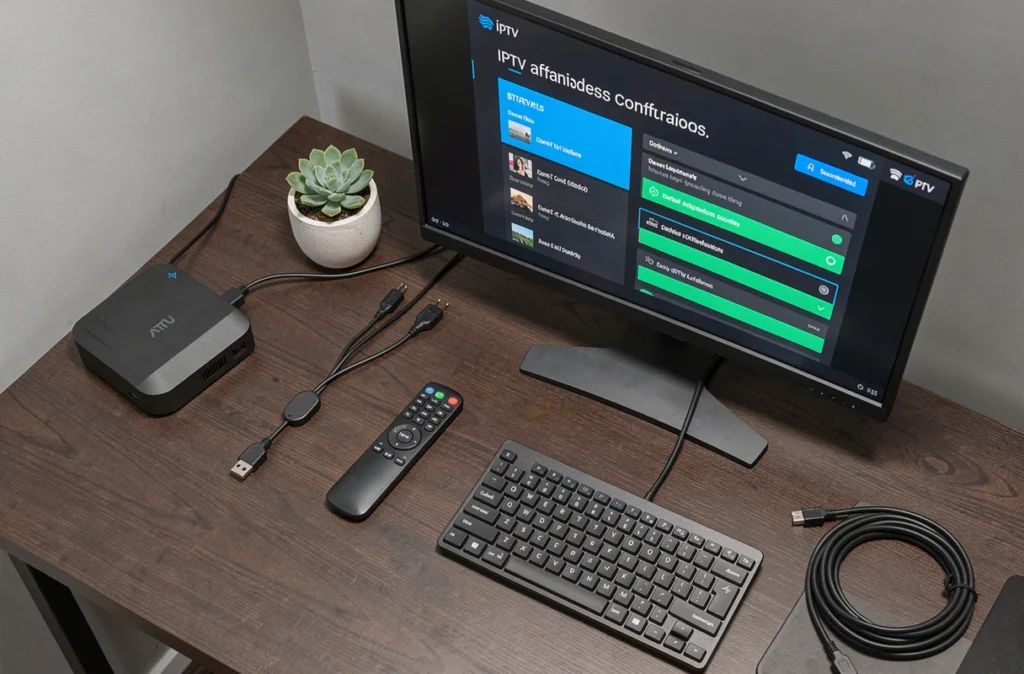
The real criterion for choosing between a native application and an external box lies in the quality of video decoding. An older TV may decode the stream in 720p but not in 1080p without stuttering. In this case, a recent box with a more powerful processor significantly improves the experience.
Legal Risk of IPTV in France: What Has Changed Recently
IPTV guides for beginners often overlook the legal question, yet the French context has evolved. Courts have ordered the blocking of dozens of streaming sites and pirate IPTV services, with decisions that no longer target only resellers.
Sanctions against end users were reported in 2026, indicating a tightening of the risk on the consumer side. Internet service providers may be forced to block IPTV servers identified as illegal, which explains why some subscriptions stop working overnight.
To distinguish a legal IPTV service from a pirate service, here are some concrete clues:
- A legal service clearly displays the broadcasting rights it holds and offers a number of channels consistent with those rights (not thousands of international channels for a few euros per month)
- Platforms like Molotov, Pluto TV, or the IPTV offers from telecom operators have verifiable licenses
- An abnormally low price, payment only in cryptocurrency, or the absence of legal mentions are classic warning signs
The technical configuration remains the same regardless of the type of subscription. What changes is the sustainability of the service and the legal risk one is exposed to. Before investing time in setting up an IPTV player, checking the legality of the provider avoids having to start over a few weeks later when the server disappears.